Let the game finish loading
Wait until the title screen or playable scene is visible. A shortcut pressed while a launcher, update prompt, archive tool, or language-patch console still has focus may be sent to the wrong program.
The fastest answer is to launch PvZ Fusion, click once inside the game window, and press Ctrl+F. The community mechanics guide documents Ctrl+F as the fullscreen toggle. If the shortcut does nothing, the image stretches, or black bars remain, use the checks below in order. This guide covers display troubleshooting only; it does not host a game build or installer.

Troubleshooting guide only — use the source that supplied your build for updates
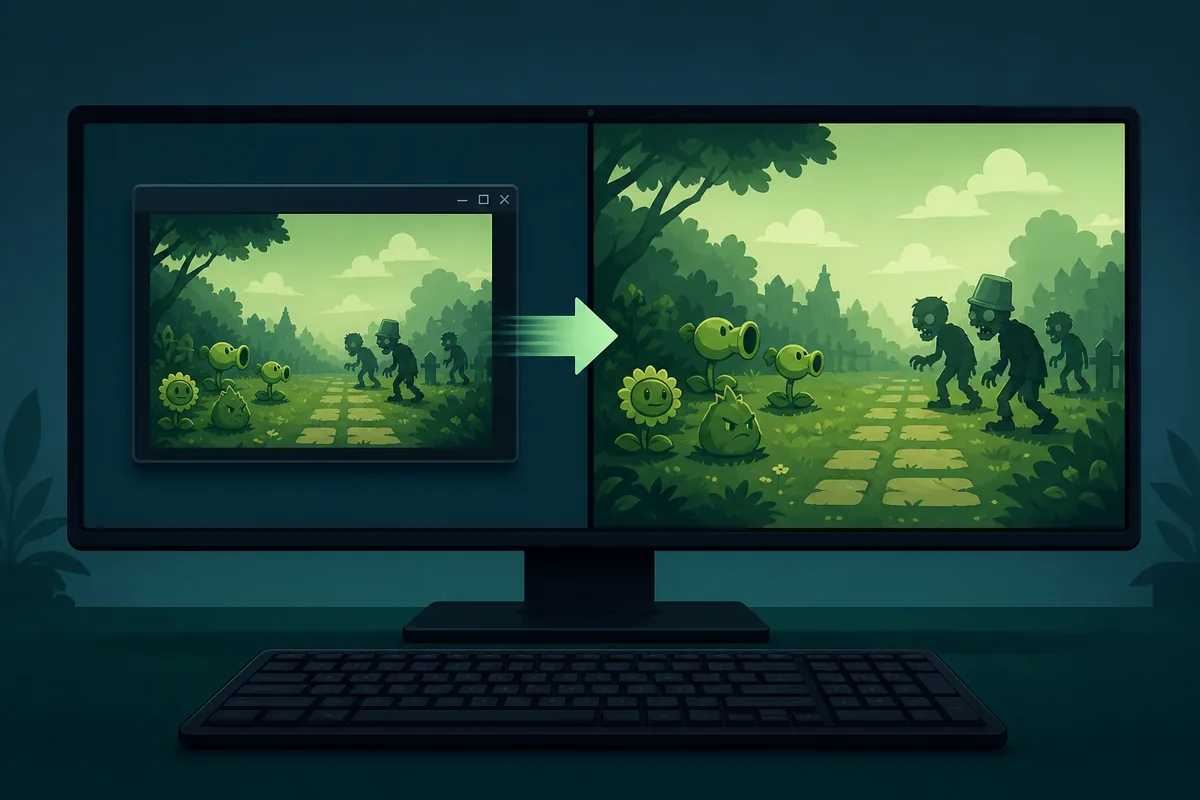
Wait until the title screen or playable scene is visible. A shortcut pressed while a launcher, update prompt, archive tool, or language-patch console still has focus may be sent to the wrong program.
Click a harmless area inside the game once so Windows gives keyboard focus to the game. Close chat overlays, screenshot tools, key remappers, or input-method popups that may capture Ctrl+F first.
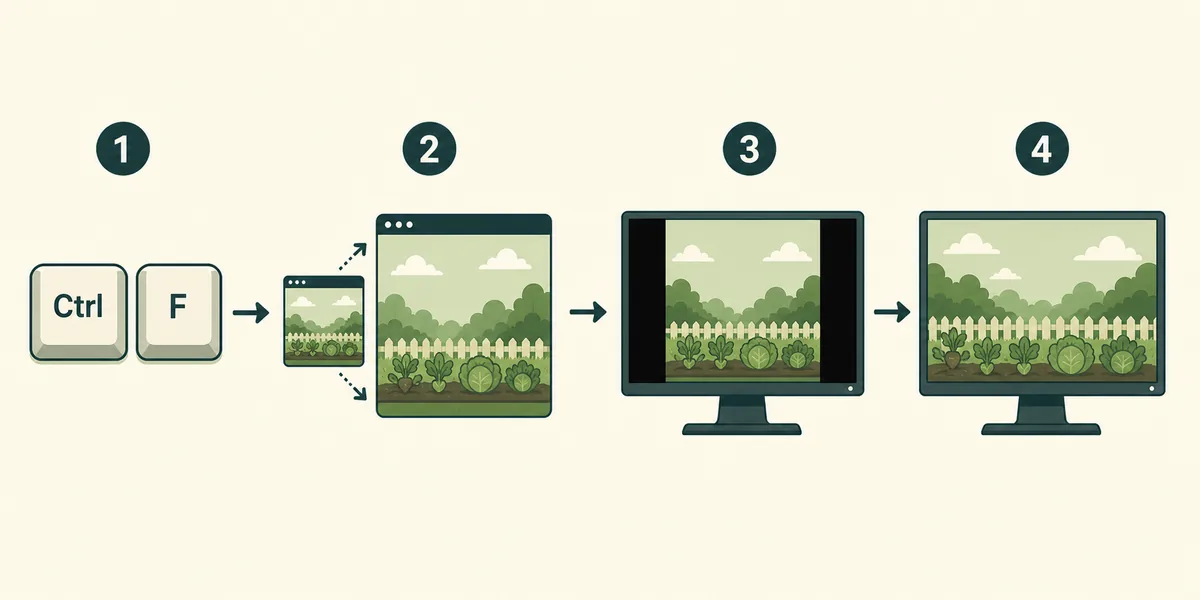
Use the documented PvZ Fusion toggle: hold Ctrl and tap F once. Wait a moment while the renderer changes modes. Repeatedly pressing the shortcut can immediately switch back to windowed mode.
If fullscreen opens but looks stretched, blurry, cropped, or boxed by black bars, keep the game running and work through Windows scaling, native resolution, GPU aspect-ratio, and DPI checks below.
PvZ Fusion community documentation identifies Ctrl+F as the built-in fullscreen toggle, so it should be the first method. Start the game normally, wait for the main screen, click inside the window, and press Ctrl+F once. Do not begin with F11, Alt+Enter, launcher flags, registry edits, or third-party borderless-window tools: those are generic Windows techniques and may not control the Fusion renderer. If Ctrl+F works, test the same key again to confirm that it safely returns to windowed mode. This quick toggle test also tells you whether the build is receiving keyboard input. If movement keys work but Ctrl+F does not, check for a remapped hotkey, an overlay, or a translation launcher that intercepts Ctrl combinations before changing compatibility settings.
First prove which window owns the keyboard. Press an ordinary in-game key, click the title bar and then the game area, and retry Ctrl+F. Exit Steam, Discord, NVIDIA, AMD, Xbox Game Bar, recording, accessibility, and keyboard-macro overlays one at a time if they use conflicting shortcuts. If the game came with a separate launcher or translation console, leave that helper open only when its instructions require it, but make sure the game window is active. Avoid running random fullscreen fix executables from mirrors. A clean test folder is safer: keep the original archive name, extract a fresh copy, launch it without old plugins, and compare the result. If the clean copy works, the problem is likely a plugin, translation patch, saved configuration, or overlay rather than Windows itself.
| Symptom | Best next check |
|---|---|
| Ctrl+F opens browser search | The browser or launcher has focus; click the game window |
| Nothing changes, but gameplay keys work | Disable overlay or hotkey conflicts |
| Fresh copy works | Remove old plugins, config, or mismatched language files |
| All copies fail | Check DPI, GPU scaling, and build-specific notes |
Black bars do not always mean fullscreen failed. Older and fan-made PvZ builds may render at a narrower aspect ratio than a modern 16:9 or ultrawide monitor. In that case, preserving aspect ratio produces side bars but keeps circles, plants, lanes, and text shaped correctly. Open the NVIDIA Control Panel, AMD Software, or Intel Graphics Command Center and compare Preserve Aspect Ratio with Full-screen Scaling. Choose aspect-ratio preservation when the image becomes wide or characters look squashed. Use full-panel scaling only if you prefer a filled screen and accept distortion. On ultrawide displays, a centered 16:9 image is usually more readable than forcing the game across the whole panel. Do not download a replacement DLL or modified executable merely to remove bars unless its source, version support, and rollback steps are clear.
| Display result | Recommended choice |
|---|---|
| Correct shape with side bars | Keep aspect-ratio scaling |
| Image fills screen but looks wide | Disable stretched full-panel scaling |
| Image is cropped at top or bottom | Return to native desktop resolution and centered scaling |
| Ultrawide monitor | Prefer centered or 16:9 aspect-ratio mode |
Use the monitor's native Windows resolution first. Then compare Windows display scaling at 100% and your normal value, such as 125% or 150%. If only this game is blurry, right-click the actual game executable, open Properties, choose Compatibility, open Change high DPI settings, and test the program DPI override without applying it to unrelated launchers. Record each change so it can be reversed. If the window opens partly off-screen, temporarily use one monitor, move the taskbar to its normal edge, and set the primary display before relaunching. Avoid editing several compatibility options at once; otherwise you will not know whether fullscreen, DPI, color mode, or administrator settings changed the result.
This article checked the community developer page, the PvZ Fusion community wiki, and the PVZF-Tran English translation project on July 30, 2026. Those sources align around base version 3.8.1, with community release activity dated July 11–12, 2026. File size, package name, launcher behavior, translation completeness, and fullscreen behavior can still differ between Windows archives, Android ports, pre-patched English packages, and reposted mirrors. The site therefore does not offer a direct installer. Match every fix to the exact build you already have: preserve its archive name, note the base version, confirm whether a translation patch is separate, and read that source's changelog. A fix made for 3.8.1 should not be described as universal for older or future builds.
Verified community base: 3.8.1. No stable first-party direct file URL was available for this guide, so source pages are used instead of an installer link.
The short community demonstration below directly supports this page's main task: it shows the PvZ Fusion fullscreen feature rather than a generic trailer or unrelated gameplay clip. Use it to compare the expected transition with your own build. A video can demonstrate the control, but it cannot prove that a download file is current or safe. Keep version and source verification separate from display troubleshooting.
If the game stops opening after a compatibility or scaling experiment, reverse the last change before trying another. Remove only the configuration files created by your test when the source documentation identifies them; do not delete save folders blindly. Keep a backup of the working folder and saves before replacing translation files, plugins, or executables. Test in a short, simple path without cloud synchronization or special characters. If a mirror tells you to disable antivirus permanently, install a browser extension, run an unrelated downloader, or replace several unknown DLL files, stop. Return to the source page for your build, compare its known issues, and use the site's PC install and English-version guides for safer setup checks.
Click inside the running game and press Ctrl+F once. Community mechanics documentation identifies Ctrl+F as the built-in fullscreen toggle.
Another program has keyboard focus. Close the search box, click inside the PvZ Fusion game window, and press Ctrl+F again.
Try Ctrl+F first because it is the documented Fusion control. Alt+Enter and F11 are generic shortcuts and may do nothing or control a launcher instead of the game.
The build may use a narrower aspect ratio than your monitor. Aspect-ratio scaling preserves the correct picture shape and can intentionally leave side bars.
Open your GPU display settings and choose Preserve Aspect Ratio or centered scaling instead of stretching the image across the whole panel.
Use the monitor's native resolution, compare Windows scaling values, and test a high-DPI override only on the actual game executable. Change one setting at a time.
No. PvZ Fusion is a community fan game. Version 3.8.1 was cross-checked through community developer, wiki, and translation-project sources, not an EA product page.
No. It provides fullscreen troubleshooting and links to source information. No stable verified direct installer URL was available, so the page does not mirror or guess a file link.